What cables do I need for my TV?
Got a new TV and wondering how to get everything hooked up? It's one of the first questions that pops up after unboxing. And with so many types of cables and accessories out there, it can all get a bit frustrating trying to make your tech talk to each other. Especially when all want to do is kick back and start watching!
Don't worry though, as this guide breaks down the most common TV cables and what each one does. So, whether you're plugging in a soundbar, a games console, or you've dusted off an old DVD player that you fancy connecting — you'll know exactly which leads to reach for.
Power cable
Let's start with the obvious — your telly won't do much without power. And thankfully, all TVs come with a power cable in the box, so there's no need to hunt one down. Just insert the smaller end into the power port on the back of your TV, and the other into a mains socket.
HDMI cables
_What they do: Connect your TV to devices like Blu-ray players, games consoles, set-top boxes, and soundbars._
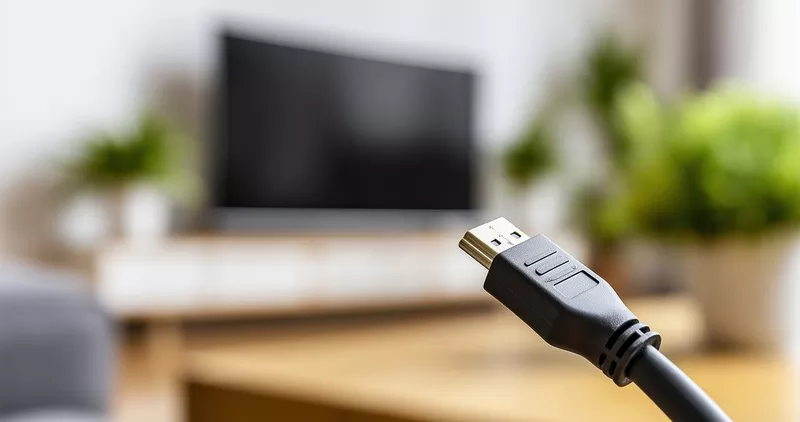
HDMI cables are the standard connection for most of today's TVs, and carry both high-quality video and audio. But it's not one HDMI cable that connects all. Depending on your setup, you might need a specific type to get the best performance.
Here are the main HDMI cables you'll come across and what they're for:
- HDMI 1.4: Great for Full HD (1080p) TVs and everyday viewing, supporting standard refresh rates and basic surround sound. It can't handle 4K at high frame rates or HDR though, so you might want to future-proof with a higher-spec HDMI cable. Speaking of…
- HDMI 2.0: If you've gone 4K, this is your go-to. It supports 4K at up to 60 frames per second, keeping everything on-screen looking smooth. Plus HDR, giving you brighter highlights and deeper blacks. It handles improved audio formats like Dolby Digital Plus too.
- HDMI 2.1: Built for 8K TVs and next-gen gaming consoles like the PS5 and Xbox Series X. It supports ultra-smooth 120fps refresh rates and gaming features like Variable Refresh Rate (VRR) and Auto Low Latency Mode (ALLM) for lag-free play. It also includes eARC for uncompressed, high-quality audio to soundbars and AV receivers.
- Mini HDMI: Found on smaller devices like digital cameras, tablets, and some laptops. You'll need a Mini HDMI to standard HDMI cable or adapter to connect to your TV and enjoy your photos or videos on the big screen.
Aerial cable
_What they do: Connect your telly to a rooftop or wall-mounted aerial, letting you tune into live TV channels with a clear signal._
If you're planning to watch live TV, like Freeview or terrestrial channels, you'll need an aerial cable to link your TV to a wall socket connected to an external aerial. It's the classic way to tune into live broadcasts, and it's still going strong in homes all across the UK.
Aerial cables are usually coaxial cables, designed to carry radio frequency (RF) signals from your aerial to your TV. Most use a male IEC connector (commonly called a coax plug), which fits into the aerial input on the back of your TV. While some satellite or communal systems may use F-type connectors, which screw into place for a more secure fit.
Tech tip: Loose connections can cause pixelation or missing channels. So, make sure the plug fits snugly in your TV and the socket you've connected the other end to.
SCART lead
_What they do: Link older tech like VHS players, DVD players, and retro consoles to your telly._
SCART cables might look chunky and outdated, but they were once the gold standard for connecting TVs to VHS players and early games consoles. It's an analogue connection after all, which means it can't support HD or digital formats. While HDMI has taken over for modern setups, SCART still plays a key role in keeping legacy tech alive.
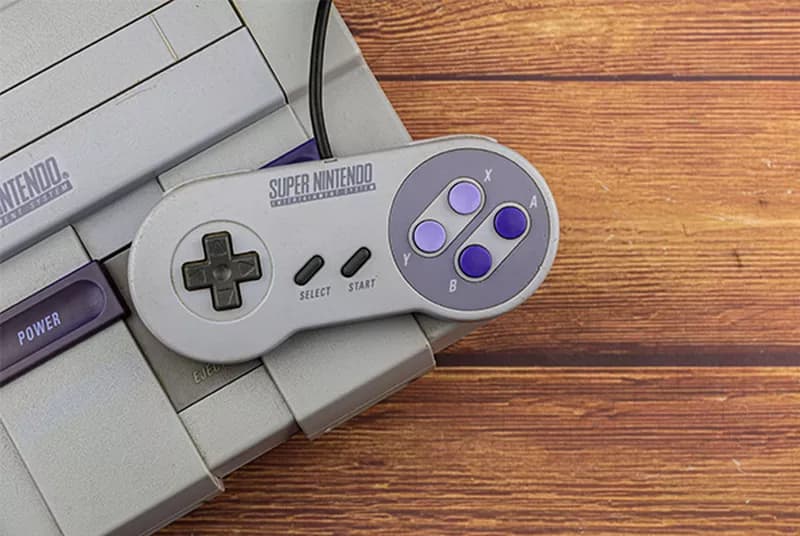
Tech tip: Want to hook up your SNES? If your TV doesn't have a SCART port, just grab a SCART to HDMI converter to play.
Component & composite AV cables
_What they do: Another way of connecting DVD players, previous-gen consoles, and set-top boxes to a TV._
These AV cables look similar at first glance, but they serve different purposes. Knowing which one to use can make all the difference when connecting older tech to your TV:
- Component AV cables: Have five cables, three for video (red, blue, green) and two for audio (red and white). They support resolutions up to 1080p, making them a solid choice for older HD devices. Most HD TVs still include component ports, though they're becoming less common.
- Composite AV cables: These feature 3 cables, one for video (yellow) and two for audio (red and white). They support lower resolution (typically 480i), so expect softer images and less vibrant colours. If your TV doesn't have ports for them, you might be able to connect using a SCART adapter.
USB cable
_What they do: Let you connect a hard drive to your TV, so you can see your photos and videos on a bigger screen._
USB ports on your TV aren't just there to fill space — they're seriously handy. Most smart TVs come with built-in media players that support popular formats like MP4, AVI, JPEG, and MP3. That means you can plug in a USB stick and instantly share holiday photos with the whole family, play your favourite tunes when working out in the lounge, or watch a downloaded film.
And if your media is stored on an external hard drive, you can connect it directly to your TV using a USB cable — no need to transfer files or use a middleman. Just plug it in, select the USB input, and enjoy.

S/PDIF connections
S/PDIF stands for Sony/Philips Digital Interface Format, which is used to send high-quality digital audio from one device to another. It's a reliable way to connect your TV to sound systems like soundbars or home cinema setups — especially when HDMI isn't an option. It's also perfect for stereo and multi-channel audio, including formats like Dolby Digital and DTS.
These optical cables use light to transmit audio through a fibre optic cable. So, they don't get affected by electrical interference and are ideal for longer runs.
Tech tip: If your TV and soundbar support HDMI eARC, that's often the better choice for getting richer, uncompressed audio.
Ethernet cable
_What they do: Connect your TV directly to your router for fast, stable internet — perfect for streaming, gaming, and smart features._
Wi-Fi is super convenient. But if you want the most reliable connection for your TV, Ethernet is the way to go. Ethernet cables link your TV straight to your router, giving you faster speeds, lower latency, and fewer interruptions. It can be especially useful for streaming in 4K or playing cloud-based games.

FAQs
What cable do I need to connect my TV to a soundbar?
You'll usually want an HDMI cable, ideally one that supports ARC or eARC (Audio Return Channel) for the best sound quality. If your soundbar or TV doesn't support HDMI ARC, you can use a digital optical (S/PDIF) cable instead.
Can I connect my laptop to my TV with a USB cable?
Not directly. USB ports on TVs are mostly for media playback or powering devices. To mirror your laptop screen, it'd be best to use an HDMI cable. That's because it carries both video and audio and works with most laptops and TVs.
What's the difference between HDMI 2.0 and HDMI 2.1?
HDMI 2.0 supports 4K video at 60fps and HDR, making it great for streaming and gaming. But HDMI 2.1 takes things further with support for 8K, 120fps refresh rates, and gaming features like Variable Refresh Rate (VRR) and Auto Low Latency Mode (ALLM). It also includes eARC for higher-quality audio with soundbars.
Do I need a special cable for Freeview?
Yes, you'll need a coaxial aerial cable to connect your TV to a rooftop or wall-mounted aerial. This will allow you to receive Freeview and other live TV channels. Just make sure your TV has a built-in tuner, or use a set-top box instead.
Can I still use SCART cables with modern TVs?
Some newer TVs still include a SCART port, but many don't. If your TV doesn't have one, you can use a SCART to HDMI converter to connect older devices like DVD players or retro consoles.