3 easy ways to connect your smart TV to the internet
Most new TVs these days are 'smart'. But how do you connect your TV to the internet? We'll show you exactly how, with wireless and wired options explained.
With a smart TV, the telly world is your oyster. Once you've connected your television to the internet, your favourite shows and films are only a couple of button presses away. Netflix. Prime Video. BBC iPlayer. You can watch them all...

1. The wireless option - connect via Wi-Fi
The majority of smart TVs are made to work with your Wi-Fi. That's because they have a built-in wireless adapter.
Connecting to the web should only take a couple of minutes. But, if your Wi-Fi signal isn't the strongest, we'd recommend putting your router and telly in the same room. That way, you can connect to your telly quickly. And everything you watch should run smoothly without buffering ruining the action.
What's good about a wireless connection?
- There are no trailing wires — perfect for keeping your living room nice and tidy. There's nothing for you to trip over either
- Place your TV anywhere in the room — you could wall mount it for the best viewing angle possible
- Incredibly simple to set up — press a few buttons and you're ready to get watching
How to connect
- Hit the Menu button on your TV remote
- Choose the Network Settings option, then Set up a Wireless Connection
- Select your wireless network name from the drop-down list
- Type in your Wi-Fi password using your remote
2. The wired option - plug straight into your router
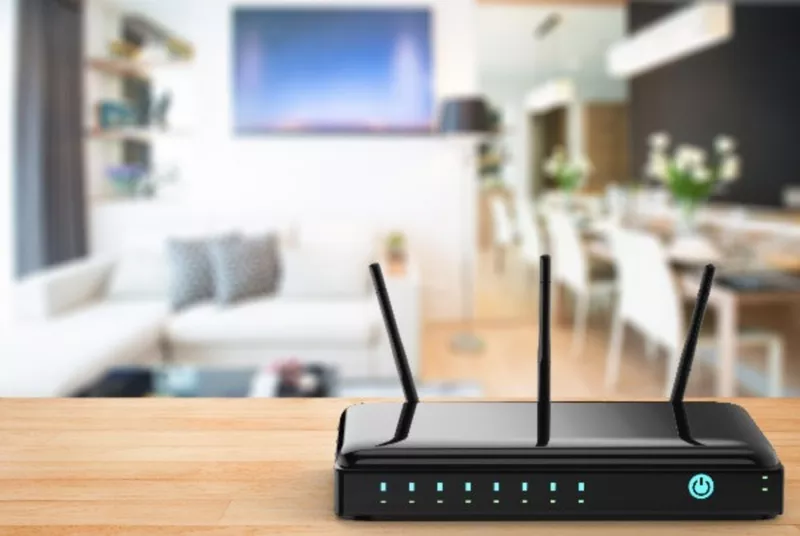
Want the strongest, most stable connection? Plug your TV directly into the internet with an Ethernet cable. To do this, you'll need to make sure your router is near your telly. Or, failing that, just make sure you get an Ethernet cable that's long enough.
When you're connecting multiple devices, you want to make sure your connection stays strong. So, go for a powerful router that's designed for high internet usage.
What's good about a wired connection?
- Easy to set up — just plug the Ethernet cable into your TV
- It offers the most reliable connection — so your film won't freeze up halfway through
- It's a lot faster than Wi-Fi
How to connect
- Find the Ethernet port on the back of your TV
- Connect an Ethernet cable from your router to the port on your telly
- Select Menu on your TV's remote and then go to Network Settings
- Select the option to enable wired internet
- Type your Wi-Fi password in using the buttons on your remote
3. The powerline option - for when your TV is upstairs
Sometimes it's just not practical having your telly in the same room as your router. But even if your TV is upstairs or in another room, you can still watch Netflix.
The further you are from your router, the weaker the signal becomes. But you can extend the reach of your home network for smoother streaming with a powerline kit.
A powerline kit usually includes 2 adapters and 2 Ethernet cables. Once the adapters are plugged into power sockets and your router, the internet signal is then sent down your electricity cables.
What's good about a powerline connection?
- It sends a strong internet connection upstairs or through thick walls
- You'll extend the internet right into the far corners of your home
- It's super easy to set it all up
How to connect
- Plug the first powerline adapter into a socket in the same room as your router
- Use an Ethernet cable to connect the adapter to your broadband router
- Plug the second powerline adapter into a socket in the same room as your smart TV
- Then plug an Ethernet cable into the Ethernet port on your smart telly
- Connect the other end of the Ethernet cable to your powerline adapter
Why is fast broadband important?
Super-fast broadband will give you the best possible regular streaming experience — and it's near-essential for 4K streaming.
Watching online video is the main benefit of a smart TV. The faster your broadband, the better quality your catch-up TV, film night and box set binge will be - especially if your smart TV is also 4K UHD. Netflix and Amazon stream a selection of shows and films in 4K, and you'll want to take full advantage of them.
Smart TV FAQs
How do I know if my smart TV is connected to the internet?
You can check this by navigating to your TV's settings, and looking for the "Network" or "Wi-Fi" section.
If you're connected, it'll show your network's name. If it's not connected, you'll be prompted to join a network.
You can also test the streaming services and apps on your TV to double-check. If they're working, the answer's obvious, right?
Can I use a wired connection instead of Wi-Fi for my smart TV?
Yes, you can use a wired Ethernet connection. And in fact, it's often more reliable than Wi-Fi.
Simply connect an Ethernet cable from your router to your TV's Ethernet port. It's perfect if your Wi-Fi is unstable or if you want faster streaming speeds for high-quality content.
What should I do if my smart TV won't connect to the internet?
First, check your Wi-Fi connection to make sure it's working properly. Then, try restarting both your router and your TV.
You can also check for software updates or reset the TV's network settings to fix any connectivity issues.
If you've tried everything and still can't connect, there could be a deeper issue with your TV.
Do I need a smart TV to watch streaming services?
Not at all! You can watch streaming services using devices like Roku streaming sticks, Amazon Fire TV sticks or even a games console. Simply connect the device to your TV and Wi-Fi, and you'll have access to all your favorite streaming apps.